
USB 3.0 vs USB 3.1 Connectors: Key Differences Explained
USB 3.0 vs USB 3.1 Connectors: Key Differences Explained
Introduction
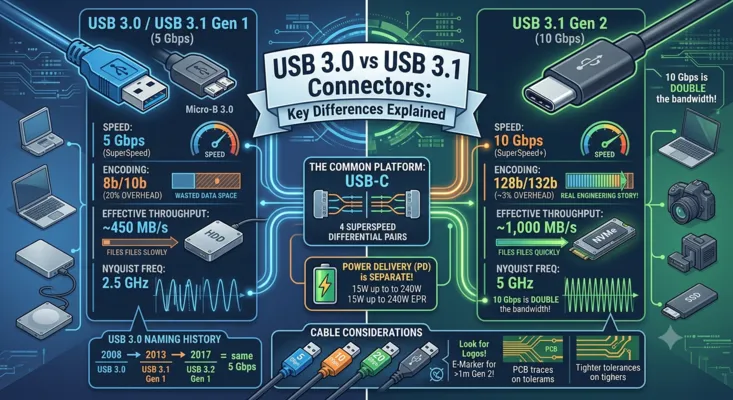
“USB 3.0” and “USB 3.1” are among the most confused terms in connector specifications. Part of the problem is USB-IF’s own naming history: USB 3.0 became USB 3.1 Gen 1, then USB 3.2 Gen 1, all describing the same 5 Gbps speed. Meanwhile, genuine USB 3.1 introduced 10 Gbps — a doubling of bandwidth that matters for external SSDs, high-resolution cameras, and docking stations.
This article clarifies the actual technical differences, explains what the naming changes mean for connector selection, and provides a practical framework for choosing between USB 3.0 and 3.1 connectors in PCB designs.
1. The Naming Problem: A Quick History
USB-IF has renamed the 5 Gbps standard three times:
| Year | Name | Speed | Connector |
|---|---|---|---|
| 2008 | USB 3.0 | 5 Gbps | USB-A, USB-B, Micro-B (with extra pins) |
| 2013 | USB 3.1 Gen 1 | 5 Gbps | Same as above + USB-C |
| 2013 | USB 3.1 Gen 2 | 10 Gbps | USB-C (primary), USB-A (limited) |
| 2017 | USB 3.2 Gen 1 | 5 Gbps | USB-C |
| 2017 | USB 3.2 Gen 2 | 10 Gbps | USB-C |
| 2017 | USB 3.2 Gen 2×2 | 20 Gbps | USB-C only |
When a datasheet says “USB 3.1,” you need to check whether it means Gen 1 (5 Gbps, same as USB 3.0) or Gen 2 (10 Gbps, twice as fast). If the datasheet is from before 2017 and says “USB 3.1” without specifying Gen 1 or Gen 2, assume Gen 1 (5 Gbps) unless proven otherwise.
2. Physical Layer: What Actually Changed
2.1 Data Rate and Encoding
| Parameter | USB 3.0 / 3.1 Gen 1 / 3.2 Gen 1 | USB 3.1 Gen 2 / 3.2 Gen 2 |
|---|---|---|
| Raw signaling rate | 5 Gbps | 10 Gbps |
| Encoding | 8b/10b | 128b/132b |
| Encoding overhead | 20% | ~3% |
| Effective throughput | ~450 MB/s | ~1,000 MB/s |
| Nyquist frequency | 2.5 GHz | 5 GHz |
| Channel loss budget | ~10 dB at 2.5 GHz | ~10 dB at 5 GHz |
The move from 8b/10b to 128b/132b encoding in Gen 2 is the real engineering story. 8b/10b wastes 20% of bandwidth on DC balance and clock recovery overhead. 128b/132b reduces that to roughly 3%, meaning Gen 2 delivers more than double the effective throughput of Gen 1 — not just twice the raw bit rate.
2.2 Signal Integrity Requirements
Doubling the signaling rate from 5 Gbps to 10 Gbps has direct PCB design consequences:
| Requirement | Gen 1 (5 Gbps) | Gen 2 (10 Gbps) |
|---|---|---|
| Differential impedance | 90 Ω ±15% | 90 Ω ±10% |
| Intra-pair skew | < 15 ps | < 10 ps |
| Insertion loss at Nyquist | < 8 dB | < 10 dB (with EQ) |
| Return loss | < -10 dB | < -12 dB |
| Crosstalk (NEXT/FEXT) | < -30 dB | < -35 dB |
For PCB designers, the tighter tolerances on Gen 2 mean shorter trace lengths, fewer vias, more careful length matching, and often higher-grade laminate materials to control dielectric losses at 5 GHz.
2.3 Connector Compatibility
USB 3.1 Gen 2 (10 Gbps) is most commonly implemented on USB-C connectors. While the USB-A and Micro-B physical form factors can carry Gen 2 signals in theory, the connector design itself was not optimized for 10 Gbps — the pin arrangement and ground shielding on USB-A creates more crosstalk at 5 GHz than USB-C’s shielded differential pair design.
In practice:
– USB-C: Designed for Gen 2 from the start. All USB-C receptacles with SuperSpeed pairs are rated for at least Gen 1; many are certified for Gen 2.
– USB-A (blue): Gen 1 at best. Some implementations claim Gen 2 but signal integrity is marginal.
– Micro-B 3.0: Gen 1 only. The extra connector width and exposed pins make Gen 2 impractical.
3. USB-C Connector: The Common Platform
Both USB 3.0/3.1 Gen 1 and USB 3.1 Gen 2 converge on the USB-C connector for modern designs. The USB-C connector provides four SuperSpeed differential pairs (two TX, two RX), which support:
| Mode | Lanes Used | Max Speed |
|---|---|---|
| USB 3.2 Gen 1 (1×1) | 1 TX + 1 RX | 5 Gbps |
| USB 3.2 Gen 2 (1×1) | 1 TX + 1 RX | 10 Gbps |
| USB 3.2 Gen 2×2 | 2 TX + 2 RX | 20 Gbps |
The connector itself does not limit whether a port runs at Gen 1 or Gen 2 — the host controller and the PCB routing quality determine the achievable speed.
4. Power Delivery: No Difference at the Connector Level
USB 3.0 and USB 3.1 specifications do not define power delivery — that is handled by the separate USB Power Delivery (PD) specification and, for basic charging, by the USB Battery Charging (BC 1.2) specification.
| Power Standard | Max Power | Relevant Connectors |
|---|---|---|
| USB 2.0 default | 2.5W (5V @ 500 mA) | All |
| USB 3.0 default | 4.5W (5V @ 900 mA) | USB-A, USB-B, Micro-B 3.0 |
| USB-C default (3A) | 15W (5V @ 3A) | USB-C |
| USB PD (SPR) | 100W (20V @ 5A) | USB-C |
| USB PD (EPR) | 240W (48V @ 5A) | USB-C |
A USB 3.1 Gen 2 port may deliver 4.5W (USB 3.0 default) or 240W (PD 3.1 EPR) — the data speed and power capability are independent variables. When selecting a connector, treat data rate and power requirements as separate specifications.
5. Cable Considerations
5.1 USB 3.0 / 3.1 Gen 1 Cables
- USB-A to USB-B 3.0: Full-size B connector with extra pins above the USB 2.0 section. Reliable up to 3 meters passive.
- USB-A to Micro-B 3.0: Wide Micro-B connector. Typically limited to 1-2 meters for reliable 5 Gbps.
- USB-C to USB-C (Gen 1): Standard USB-C cable with at least one SuperSpeed pair connected. E-Marker not required for 3A/5 Gbps.
5.2 USB 3.1 Gen 2 Cables
- USB-C to USB-C (Gen 2): Requires higher-quality SuperSpeed pairs rated to 10 Gbps. E-Marker required to advertise Gen 2 capability.
- USB-C to USB-A (Gen 2): Rare. Most USB-C to USB-A cables are USB 2.0 only (480 Mbps) or Gen 1 at best.
- Active cables: For lengths beyond 1 meter at 10 Gbps, active re-driver cables are recommended.
5.3 How to Identify Cable Speed
USB-IF certification logos provide the most reliable identification:
| Logo Text | Speed |
|---|---|
| “5 Gbps” | USB 3.2 Gen 1 |
| “10 Gbps” | USB 3.2 Gen 2 |
| “20 Gbps” | USB 3.2 Gen 2×2 |
| “40 Gbps” | USB4 Gen 3 |
| “80 Gbps” | USB4 Gen 4 |
If a cable has no speed marking, assume USB 2.0 (480 Mbps) data rate regardless of its charging capability.
6. Real-World Performance: When Does Gen 2 Matter?
6.1 Scenarios Where Gen 2 (10 Gbps) Provides Clear Benefits
- External NVMe SSDs: A Gen 2 connection delivers ~1,000 MB/s — close to SATA SSD internal speeds. Gen 1 (~450 MB/s) bottlenecks modern TLC/QLC external drives.
- 4K/8K Video Capture: Uncompressed 4K 4:2:2 10-bit at 60 fps requires roughly 12 Gbps. Gen 2 with compression handles this; Gen 1 cannot.
- Multi-gigabit Ethernet Adapters: 2.5G and 5G Ethernet adapters need Gen 2 to avoid USB overhead becoming the bottleneck.
- Docking Stations: A dock handling display, Ethernet, and multiple USB peripherals benefits from the extra bandwidth, especially when USB 3.x data shares lanes with DisplayPort Alt Mode.
6.2 Scenarios Where Gen 1 (5 Gbps) Is Sufficient
- USB Flash Drives: Most consumer flash drives cannot saturate 5 Gbps. The flash controller and NAND are the bottleneck, not the interface.
- Webcams and Audio Interfaces: Even 1080p60 uncompressed video is well within USB 2.0 bandwidth. USB 3.0 provides headroom but no practical benefit.
- Keyboards, Mice, and HID Devices: USB 2.0 is more than adequate. The main reason to use a USB-C connector for peripherals is the reversible plug, not speed.
- Industrial Sensors and Data Loggers: Most industrial applications with periodic data bursts are limited by sensor sampling rates, not bus bandwidth.
7. Connector Selection Decision Matrix
| Application | Recommended Data Rate | Connector Type | Key Considerations |
|---|---|---|---|
| Charging only (up to 240W) | USB 2.0 | USB-C | 5A E-Marker cable required for >3A |
| Office peripherals | USB 2.0 or Gen 1 | USB-C or USB-A | USB-A still dominant in enterprise |
| External storage (HDD) | Gen 1 (5 Gbps) | USB-C | HDD maxes out ~200 MB/s |
| External storage (NVMe SSD) | Gen 2 (10 Gbps) | USB-C | Gen 2 or better for >1,000 MB/s |
| 4K webcam / capture card | Gen 2 (10 Gbps) | USB-C | Gen 1 may work with compression |
| Docking station | Gen 2 or USB4 | USB-C | More lanes = more simultaneous I/O |
| Machine vision camera | Gen 2 or USB4 | USB-C (locking) | Bandwidth + mechanical retention |
| Automotive infotainment | Gen 1 or Gen 2 | USB-C (automotive) | Temperature range, vibration |
8. Migration Path: From USB 3.0 to USB4
For new PCB designs, the question is rarely “USB 3.0 or USB 3.1?” — it is “how future-proof should this USB-C port be?”
8.1 USB 3.2 Gen 1 (5 Gbps) as Baseline
Designing for Gen 1 as a minimum is straightforward: route one TX and one RX pair with 90 Ω differential impedance, keep traces short and length-matched, and you have a robust 5 Gbps link. Most USB host controllers support at least Gen 1, making this the safe default for cost-sensitive designs.
8.2 USB 3.2 Gen 2 (10 Gbps) as Standard
For designs shipping in 2025 and beyond, Gen 2 is becoming the practical baseline. The incremental BOM cost over Gen 1 is minimal (same connector, slightly tighter PCB tolerances), and it future-proofs the port for external SSDs and higher-bandwidth peripherals. Most modern SoCs and USB hub controllers include Gen 2 PHYs.
8.3 USB4 for Premium Designs
USB4 (20/40/80 Gbps) requires routing both TX pairs and both RX pairs, plus additional platform-level support for tunneling and Alternate Mode. The connector is the same USB-C, but the PCB design and BOM cost increase significantly. Reserve USB4 for designs where the bandwidth or Thunderbolt compatibility justifies the investment.
9. Summary: Practical Takeaways
-
“USB 3.0” and “USB 3.1 Gen 1” are the same thing: 5 Gbps, 8b/10b encoding, effective throughput ~450 MB/s. If a specification says “USB 3.1” without qualification, confirm whether it means Gen 1 or Gen 2.
-
USB 3.1 Gen 2 doubles the speed to 10 Gbps: The key enabler is 128b/132b encoding, not just a faster clock. Effective throughput reaches ~1,000 MB/s.
-
The USB-C connector is the common platform: Both Gen 1 and Gen 2 converge on USB-C. USB-A and Micro-B are effectively Gen 1-only for practical purposes.
-
Data speed and power delivery are independent: A “USB 3.1” port could deliver 4.5W or 240W. Check PD capability separately from data rate.
-
For new designs, target Gen 2 as baseline: The cost delta is small, and it avoids obsolescence as peripherals move to higher speeds.
-
Cables matter as much as ports: A Gen 2 port with a Gen 1 cable runs at Gen 1. E-Marker chips are the only reliable way to identify cable capabilities.
FAQ
Q: Can I plug a USB 3.0 device into a USB 3.1 Gen 2 port?
A: Yes. All USB 3.x standards are backward compatible. A USB 3.0 device connected to a Gen 2 port will operate at 5 Gbps.
Q: Does USB 3.1 require a USB-C connector?
A: No. USB 3.1 Gen 1 (5 Gbps) works with USB-A and Micro-B connectors. USB 3.1 Gen 2 (10 Gbps) is primarily implemented on USB-C, though some USB-A implementations exist with reduced signal quality.
Q: What’s the difference between USB 3.2 Gen 2 and USB 3.1 Gen 2?
A: None. USB-IF renamed USB 3.1 Gen 2 to USB 3.2 Gen 2 in 2017. The underlying 10 Gbps single-lane specification is identical. USB 3.2 added a new dual-lane mode (Gen 2×2 at 20 Gbps) that requires USB-C.
Q: Why do some USB 3.0 ports have blue inserts?
A: The blue color coding was an informal industry convention for USB 3.0 (5 Gbps) Type-A receptacles. It is not required by the USB specification. Red, yellow, and orange inserts sometimes indicate high-current charging ports. USB-C ports use no color coding — all capabilities must be indicated by icons or labels.
Q: How much does Gen 2 increase the PCB design complexity compared to Gen 1?
A: Moderately. The tighter impedance and skew tolerances require more careful routing, and insertion loss at 5 GHz may force shorter trace lengths or higher-grade PCB materials. However, for most designs with trace lengths under 100mm on standard FR-4, Gen 2 is achievable without exotic materials.
References: USB 3.2 Specification, USB Type-C Cable and Connector Specification R2.4, USB Power Delivery Specification R3.2, USB-IF Compliance Program Documentation.