
USB 3.2 Gen 1 vs Gen 2 vs Gen 2×2: What’s the Difference
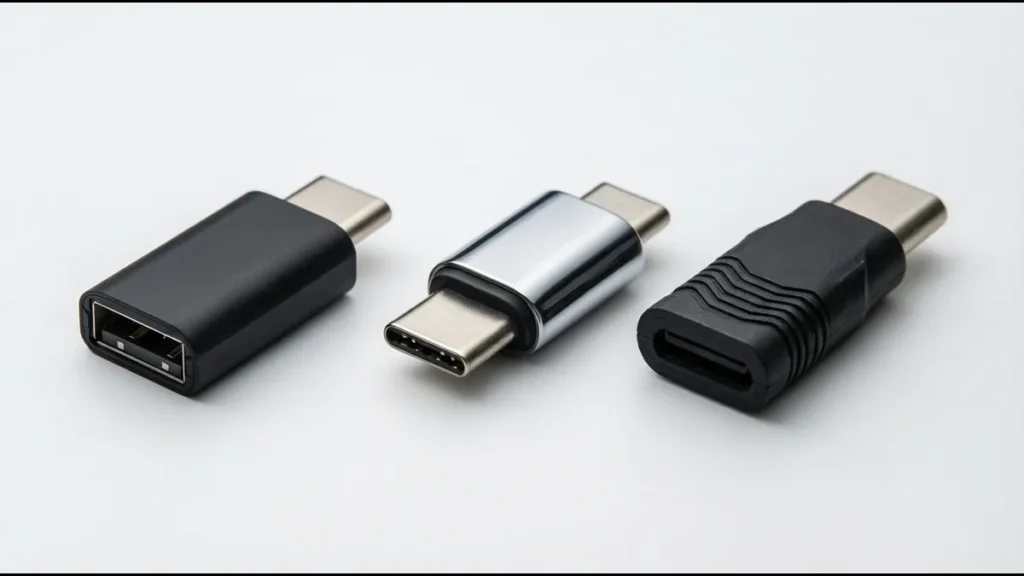
USB 3.2 naming is confusing — and the USB-IF’s rebranding over the years has made it worse. The same connector, the same cable, and the same port can support three different data rates depending on what the host and device controllers support. A USB-C port on one laptop might deliver 5 Gbps; the identical-looking port on another laptop might deliver 20 Gbps. The only way to know is to understand the naming scheme and check the specifications.
This guide breaks down the three USB 3.2 variants, how they differ at the connector, protocol, and cable level, and how to identify which one your hardware actually supports.
The Naming Problem: A Brief History
Before diving into the technical differences, it’s worth understanding why the naming is so confusing. The USB-IF has rebranded these specifications multiple times:
| Original Name | First Rebrand (2013) | Second Rebrand (2019) | Current Name |
|---|---|---|---|
| USB 3.0 | USB 3.1 Gen 1 | USB 3.2 Gen 1 | USB 3.2 Gen 1 |
| USB 3.1 | USB 3.1 Gen 2 | USB 3.2 Gen 2 | USB 3.2 Gen 2 |
| — | — | USB 3.2 Gen 2×2 | USB 3.2 Gen 2×2 |
- USB 3.0 (5 Gbps, released 2008) became USB 3.1 Gen 1 (2013) then USB 3.2 Gen 1 (2019). The specification didn’t change — only the name.
- USB 3.1 (10 Gbps, released 2013) became USB 3.1 Gen 2 then USB 3.2 Gen 2. Same specification, new name.
- USB 3.2 Gen 2×2 (20 Gbps, released 2017) is a genuinely new specification that uses two lanes of 10 Gbps.
Some manufacturers still use older names on product packaging and datasheets. When you see “USB 3.0” or “SuperSpeed USB,” it’s 5 Gbps (Gen 1). “USB 3.1” or “SuperSpeed USB 10 Gbps” is 10 Gbps (Gen 2). “SuperSpeed USB 20 Gbps” is 20 Gbps (Gen 2×2).
The Three Variants: Technical Comparison
| Specification | Gen 1 | Gen 2 | Gen 2×2 |
|---|---|---|---|
| Data rate | 5 Gbps | 10 Gbps | 20 Gbps |
| Encoding | 8b/10b | 128b/132b | 128b/132b |
| Effective data rate | ~4 Gbps | ~9.7 Gbps | ~19.4 Gbps |
| Lanes | 1 | 1 | 2 |
| Signal frequency | 5 GHz | 10 GHz | 10 GHz (×2 lanes) |
| Connector (USB-A) | Yes | Yes (rare) | No |
| Connector (USB-C) | Yes | Yes | Yes |
| Cable type | USB 3.0 cable | USB 3.1 cable | USB 3.2 cable (dual-lane) |
| Max cable length (passive) | 1–2m | 1m | 1m |
| Power (default) | 5V, 900mA | 5V, 900mA | 5V, 900mA |
| Power (with USB PD) | Up to 240W | Up to 240W | Up to 240W |
USB 3.2 Gen 1 (5 Gbps)
Overview
Gen 1 is the original USB 3.0 specification. It operates at 5 Gbps using a single differential pair (one TX lane and one RX lane, dual simplex). The encoding is 8b/10b — for every 8 bits of data, 10 bits are transmitted (the extra 2 bits provide clock recovery and DC balance). This means the effective data rate is 5 Gbps × 8/10 = 4 Gbps, or approximately 500 MB/s.
Connector Support
Gen 1 works with:
- USB-A (SuperSpeed): The blue USB-A connector with 9 pins (4 USB 2.0 + 5 SuperSpeed)
- USB-C: All USB-C connectors support Gen 1
- Micro-USB 3.0: The wider micro-USB connector (now obsolete, was used on some external HDDs)
Cable Requirements
A Gen 1 cable contains:
- 2 wires for USB 2.0 (D+, D−)
- 4 wires for SuperSpeed (TX+, TX−, RX+, RX−)
- 2 wires for power (VBUS, GND)
- Shield
Total: 8 conductors + shield. The cable is visibly thicker than a USB 2.0 cable because of the additional SuperSpeed pairs.
Typical Use Cases
- External HDDs (mechanical, 100–150 MB/s real-world)
- USB flash drives
- USB webcams
- USB audio interfaces
- Basic peripherals where 5 Gbps is more than sufficient
Real-World Performance
- Mechanical HDD enclosure: 100–150 MB/s (bottlenecked by the drive, not the interface)
- SATA SSD enclosure: 400–500 MB/s (bottlenecked by SATA III 6 Gbps, then by USB 5 Gbps)
- NVMe SSD enclosure: 400–500 MB/s (bottlenecked by USB 5 Gbps)
USB 3.2 Gen 2 (10 Gbps)
Overview
Gen 2 doubles the data rate to 10 Gbps. It uses the same single-lane architecture as Gen 1 but changes the encoding to 128b/132b — for every 128 bits of data, 132 bits are transmitted. The overhead is much lower (3.1% vs 20% for 8b/10b), so the effective data rate is 10 Gbps × 128/132 = 9.7 Gbps, or approximately 1.2 GB/s.
Connector Support
Gen 2 works with:
- USB-C: All USB-C connectors support Gen 2
- USB-A (rare): Some specialized USB-A connectors support Gen 2, but most USB-A ports are Gen 1
Most Gen 2 implementations use USB-C because the connector’s design supports higher signaling rates better than USB-A.
Cable Requirements
A Gen 2 cable is electrically similar to a Gen 1 cable but requires:
- Better impedance control (90Ω ±5% vs ±10% for Gen 1)
- Lower insertion loss (the cable must attenuate the 10 GHz signal less)
- Better shielding (10 GHz signals radiate more easily)
- Higher-quality connector contacts (15µ” gold recommended for 10 Gbps, vs gold flash acceptable for 5 Gbps)
A Gen 1 cable may work for Gen 2 at short lengths (< 0.5m), but signal integrity will be marginal. For reliable Gen 2 operation, use a cable rated for 10 Gbps.
Typical Use Cases
- External NVMe SSD enclosures (1 GB/s real-world)
- 4K video capture devices
- High-resolution displays via DisplayPort Alt Mode
- Professional audio interfaces
- Docking stations
Real-World Performance
- NVMe SSD enclosure: 900–1,050 MB/s (bottlenecked by USB 10 Gbps encoding overhead)
- 4K display via DP Alt Mode: 4K@30Hz (DP 1.2) or 4K@60Hz with DSC (DP 1.4)
- Docking station: 1× 4K display + USB peripherals + charging, all over one cable
USB 3.2 Gen 2×2 (20 Gbps)
Overview
Gen 2×2 uses two lanes of 10 Gbps (hence the “×2” designation). Unlike Gen 1 and Gen 2, which use a single TX/RX lane pair, Gen 2×2 uses both TX/RX lane pairs available in the USB-C connector simultaneously. This doubles the aggregate bandwidth to 20 Gbps.
The encoding is the same 128b/132b as Gen 2, giving an effective data rate of 20 Gbps × 128/132 = 19.4 Gbps, or approximately 2.4 GB/s.
Connector Support
Gen 2×2 works only with USB-C. It cannot work with USB-A because USB-A has only one SuperSpeed lane. The USB-C connector’s two-lane architecture (TX1/RX1 and TX2/RX2) is required.
Cable Requirements
A Gen 2×2 cable must:
- Support dual-lane operation (both TX1/RX1 and TX2/RX2 pairs active)
- Meet Gen 2 signal integrity requirements on both lanes
- Include an e-marker chip (required for USB-C cables supporting > 3A or high-speed)
- Be labeled “USB 3.2 Gen 2×2” or “SuperSpeed USB 20 Gbps”
A Gen 2 cable (single-lane, 10 Gbps) will NOT support Gen 2×2 (dual-lane, 20 Gbps). The cable must explicitly support dual-lane operation.
Typical Use Cases
- High-performance external NVMe SSD enclosures (2 GB/s real-world)
- Virtual reality headsets (high-bandwidth video + data)
- Professional video editing (raw video capture)
- Multi-display docking stations
Real-World Performance
- NVMe SSD enclosure: 1,600–2,100 MB/s (approaching PCIe 3.0 ×4 speeds)
- Dual 4K display via DP Alt Mode: 2× 4K@60Hz (with DSC)
- VR headset: 4K@90Hz per eye + USB data, over a single cable
Limitations
Gen 2×2 has limited adoption for several reasons:
- USB4 superseded it: USB4 (40 Gbps) uses the same dual-lane architecture but at 20 Gbps per lane, making Gen 2×2 redundant in new designs
- Host support is limited: Few host controllers support Gen 2×2 — it’s most commonly found on high-end desktop motherboards
- Cable cost: Gen 2×2 cables are more expensive than Gen 2 cables
- Driver issues: Some early Gen 2×2 controllers had compatibility issues with certain devices
How Lanes Work in USB-C
The USB-C connector has four high-speed differential pairs:
| Pair | Name | Direction | Gen 1 | Gen 2 | Gen 2×2 |
|---|---|---|---|---|---|
| 1 | TX1+ / TX1− | Host → Device | Active | Active | Active |
| 2 | RX1+ / RX1− | Device → Host | Active | Active | Active |
| 3 | TX2+ / TX2− | Host → Device | Inactive | Inactive | Active |
| 4 | RX2+ / RX2− | Device → Host | Inactive | Inactive | Active |
- Gen 1 and Gen 2: Use only Lane 1 (TX1/RX1). Lane 2 is reserved but inactive. When the plug is flipped, the controller switches to Lane 2 (TX2/RX2) via the mux — but only one lane is active at a time.
- Gen 2×2: Uses both lanes simultaneously. Lane 1 and Lane 2 are both active, doubling the bandwidth. The plug orientation determines which physical pins carry which lanes, but both are always active.
This is why Gen 2×2 only works with USB-C — USB-A doesn’t have Lane 2.
Identifying Which Variant Your Hardware Supports
Check the Port
| Port Type | Likely Support | How to Tell |
|---|---|---|
| USB-A (blue insert) | Gen 1 (5 Gbps) | Blue plastic insert, “SS” logo |
| USB-A (red/teal insert) | Gen 2 (10 Gbps) | Red or teal insert, “SS10” logo |
| USB-C | Gen 1, Gen 2, or Gen 2×2 | Cannot tell from port alone — check device specs |
| USB-C with “10” marking | Gen 2 (10 Gbps) | “10” printed near port |
| USB-C with “20” marking | Gen 2×2 (20 Gbps) | “20” printed near port |
| USB-C with “40” marking | USB4 or TBT4 (40 Gbps) | “40” or Thunderbolt logo |
Check the Cable
| Cable Label | Data Rate | Gen |
|---|---|---|
| “SuperSpeed USB” or “USB 3.0” | 5 Gbps | Gen 1 |
| “SuperSpeed USB 10 Gbps” or “USB 3.1” | 10 Gbps | Gen 2 |
| “SuperSpeed USB 20 Gbps” or “USB 3.2 Gen 2×2” | 20 Gbps | Gen 2×2 |
| “USB4” | 40 Gbps | USB4 |
| “Thunderbolt 3” or “Thunderbolt 4” | 40 Gbps | TBT3/TBT4 |
| No label | 480 Mbps | USB 2.0 |
Check in the Operating System
Windows:
- Open Device Manager
- Expand “Universal Serial Bus controllers”
- Look for “USB 3.0/3.1/3.2” entries — the name indicates the generation
- Use USB Tree Viewer (free tool from Microsoft) for detailed information
macOS:
- Apple Menu → About This Mac → System Report
- Hardware → USB
- Speed column shows the negotiated speed
Linux:
lsusb -t— shows USB tree with speedsdmesg | grep -i usb— shows USB negotiation messages
Connector and PCB Design by Generation
Gen 1 (5 Gbps)
| Parameter | Requirement |
|---|---|
| Housing material | PBT acceptable |
| Contact plating | 3µ” gold minimum |
| Differential impedance | 90Ω ±10% |
| Insertion loss (connector) | ≤ −0.6 dB at 2.5 GHz |
| Return loss (connector) | ≤ −8 dB at 2.5 GHz |
| TX-to-RX crosstalk | ≤ −25 dB at 2.5 GHz |
| Mux required | No (only one lane active, manual switching) |
| Retimer/redriver | Not required for traces < 100mm |
Gen 2 (10 Gbps)
| Parameter | Requirement |
|---|---|
| Housing material | PBT or LCP (LCP preferred) |
| Contact plating | 10µ” gold minimum |
| Differential impedance | 90Ω ±10% (±5% preferred) |
| Insertion loss (connector) | ≤ −0.7 dB at 5 GHz |
| Return loss (connector) | ≤ −10 dB at 5 GHz |
| TX-to-RX crosstalk | ≤ −30 dB at 5 GHz |
| Mux required | Yes (for USB-C, to handle plug orientation) |
| Retimer/redriver | Required for traces > 75mm or complex routing |
Gen 2×2 (20 Gbps)
| Parameter | Requirement |
|---|---|
| Housing material | LCP or PPS |
| Contact plating | 15µ” gold minimum |
| Differential impedance | 90Ω ±5% |
| Insertion loss (connector) | ≤ −1.0 dB at 5 GHz (both lanes) |
| Return loss (connector) | ≤ −10 dB at 5 GHz (both lanes) |
| TX-to-RX crosstalk | ≤ −30 dB at 5 GHz |
| Lane-to-lane crosstalk | ≤ −30 dB at 5 GHz |
| Mux required | Yes (must support dual-lane switching) |
| Retimer/redriver | Required for traces > 50mm or any complex routing |
Comparison: What Changes at Each Step
| Design Parameter | Gen 1 → Gen 2 | Gen 2 → Gen 2×2 |
|---|---|---|
| Frequency | 2.5 GHz → 5 GHz | Same (5 GHz) but two lanes |
| Housing material | PBT OK → LCP preferred | LCP required |
| Contact plating | 3µ” → 10µ” gold | 10µ” → 15µ” gold |
| Impedance tolerance | ±10% → ±5% | ±5% (tighter control) |
| Mux | Optional → Required | Required (dual-lane) |
| Retimer | Rarely needed → Often needed | Almost always needed |
| Cable cost | Low → Medium | Medium → High |
| PCB layout effort | Moderate → Significant | Significant → High |
Power Delivery: Same Across All Generations
A common misconception is that higher USB data rates deliver more power. They don’t. USB Power Delivery (USB PD) is independent of the USB data generation:
| USB Generation | Default Power | With USB PD |
|---|---|---|
| USB 3.2 Gen 1 | 5V, 900mA (4.5W) | Up to 240W (48V, 5A with PD 3.1 EPR) |
| USB 3.2 Gen 2 | 5V, 900mA (4.5W) | Up to 240W (48V, 5A with PD 3.1 EPR) |
| USB 3.2 Gen 2×2 | 5V, 900mA (4.5W) | Up to 240W (48V, 5A with PD 3.1 EPR) |
| USB 2.0 | 5V, 500mA (2.5W) | Up to 240W (48V, 5A with PD 3.1 EPR) |
A USB 2.0 port with USB PD can deliver 240W. A USB 3.2 Gen 2×2 port without USB PD delivers only 4.5W. Power delivery depends on the PD controller and power supply, not the USB data generation.
Backward Compatibility
USB 3.2 is fully backward compatible:
| Host | Device | Result |
|---|---|---|
| Gen 2×2 port | Gen 2×2 device | 20 Gbps |
| Gen 2×2 port | Gen 2 device | 10 Gbps |
| Gen 2×2 port | Gen 1 device | 5 Gbps |
| Gen 2×2 port | USB 2.0 device | 480 Mbps |
| Gen 2 port | Gen 2×2 device | 10 Gbps (limited by host) |
| Gen 1 port | Gen 2×2 device | 5 Gbps (limited by host) |
The connection always operates at the speed of the slower device. A Gen 2×2 external SSD connected to a Gen 1 port runs at 5 Gbps — the SSD’s 20 Gbps capability is unused.
Choosing the Right Generation for Your Product
Choose Gen 1 (5 Gbps) If:
- Your device’s data bandwidth requirement is < 400 MB/s
- You’re using a mechanical HDD or SATA SSD (bottleneck is the drive, not the interface)
- Cost is the primary concern (Gen 1 connectors and controllers are cheapest)
- The device is a basic peripheral (keyboard, mouse, webcam, audio interface)
Choose Gen 2 (10 Gbps) If:
- Your device needs 500 MB/s to 1 GB/s data bandwidth
- You’re using an NVMe SSD in an external enclosure
- You need DisplayPort Alt Mode for 4K@60Hz video
- You’re building a docking station or hub
- The cost premium over Gen 1 is acceptable (typically $0.10–$0.30 per connector)
Choose Gen 2×2 (20 Gbps) If:
- Your device needs 1–2 GB/s data bandwidth
- You’re building a high-performance external NVMe enclosure
- You need dual 4K display output
- Your host platform supports Gen 2×2 (not all do)
- You’re not planning to use USB4 (which would supersede Gen 2×2 at 40 Gbps)
Choose USB4 Instead If:
- You need > 20 Gbps (USB4 supports 40 Gbps)
- You need PCIe tunneling (USB4 supports it, Gen 2×2 doesn’t)
- You want future-proofing (USB4 is the forward path, Gen 2×2 is a legacy stopgap)
- Your host platform supports USB4 (Intel Tiger Lake+, AMD Ryzen 6000+)
Related Reading: USB4 vs Thunderbolt 4 connector differences · USB4 connector selection guide · USB connector signal integrity specs · USB Type-C pinout and wiring guide